Raspberry Pi Pico W
- Raspberry Pi Pico W
- Specifications
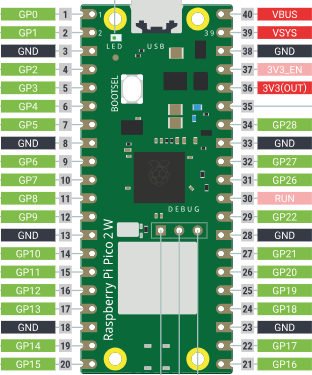
- Pin out diagram
- Setup instructions
- Using GPIO
- Neopixels
- Networking
Specifications
- Based on the RP2040 microcontroller (dual-core Arm Cortex-M0+ @ up to 133 MHz)
- Operating voltage: 1.8V–5.5V via VSYS pin
- 264 KB on-chip SRAM
- 2 MB on-board QSPI Flash
- 26 multifunction GPIO pins
- 2 × UART, 2 × I2C, 2 × SPI
- 16 × PWM channels
- USB 1.1 host/device
- Onboard LED connected via the wireless chip — use
Pin("LED")rather than a pin number - Onboard temperature sensor
- 802.11b/g/n WiFi (Pico W)
- Size: 51mm × 21mm
Pin out diagram
See image above. GP pin numbers are used in code (e.g. Pin(15)). Note that the physical pin numbers printed on the board differ from the GP numbers.
Setup instructions
Install MicroPython onto a Pico W using the UF2 bootloader:
- Download the latest MicroPython UF2 file for Pico W from micropython.org/download/RPI_PICO_W
- Hold the BOOTSEL button on the Pico W while connecting it to your computer via USB
- Release BOOTSEL — a USB drive named RPI-RP2 will appear
- Drag and drop the
.uf2file onto that drive — the Pico will reboot automatically into MicroPython
Alternatively, Thonny can install MicroPython for you: go to Tools → Options → Interpreter, select MicroPython (Raspberry Pi Pico), then click Install or update MicroPython.
Using GPIO
Onboard LED
The Pico W’s onboard LED is controlled through the wireless chip, so it uses the special name "LED" rather than a pin number.
import machine, time

led = machine.Pin("LED", machine.Pin.OUT)
while True:
    led.on()
    time.sleep(0.5)
    led.off()
    time.sleep(0.5)
External LED or pin on/off
import machine, time

# Using GP28
led = machine.Pin(28, machine.Pin.OUT)
while True:
    print("blink!")
    led.on()
    time.sleep(0.2)
    led.off()
    time.sleep(0.2)
Detect button press
import machine, time

# Using GP15 and 3.3V for button
button = machine.Pin(15, machine.Pin.IN, machine.Pin.PULL_DOWN)
print("Waiting...")
while True:
    if button.value():
        print("Button pressed")
        time.sleep(0.3)
    time.sleep(0.1)
If you are connecting the button between a GP pin and GROUND, invert your logic and use PULL_UP:
import machine, time

# Using GP15 and GND for button
button = machine.Pin(15, machine.Pin.IN, machine.Pin.PULL_UP)
print("Waiting...")
while True:
    if not button.value():
        print("Button pressed")
        time.sleep(0.3)
    time.sleep(0.1)
Servo 9G
The Pico W uses duty_u16() (a 16-bit value, 0–65535) instead of the duty() method used on ESP32. The helper function below converts degrees to the correct value.
import time
from machine import Pin, PWM

servo = PWM(Pin(0), freq=50)

def set_angle(angle):
    # 0.5ms pulse = 0°, 2.5ms pulse = 180°, period = 20ms
    min_duty = int(0.5 / 20 * 65535)   # ~1638
    max_duty = int(2.5 / 20 * 65535)   # ~8192
    servo.duty_u16(int(min_duty + (angle / 180) * (max_duty - min_duty)))

# Move to 90 degrees
set_angle(90)
time.sleep(1)

# Move to 0 degrees
set_angle(0)
time.sleep(1)

# Move to 180 degrees
set_angle(180)
time.sleep(1)
Neopixels
The Pico W has no built-in NeoPixel, so connect an external one to any spare GPIO pin.
import machine
import neopixel
import time

# Connect NeoPixel data line to GP28
led = neopixel.NeoPixel(machine.Pin(28), 1)
print("Police lights!")
while True:
    led[0] = (255, 0, 0)
    led.write()
    time.sleep(0.25)
    led[0] = (0, 0, 255)
    led.write()
    time.sleep(0.25)
There is also a .fill() method available to set all LEDs to a single colour.
Networking
The Pico W uses the standard MicroPython network module directly. Unlike the ESP32 examples which use a custom WIFI.py helper, on the Pico W you work with network.WLAN and ntptime directly.
Connect to WiFi
import network
import time

wlan = network.WLAN(network.STA_IF)
wlan.active(True)
wlan.connect("SCWiFi", "wifi1234")

while not wlan.isconnected():
    print("Connecting...")
    time.sleep(0.5)

print("Connected:", wlan.ifconfig()[0])
Get current date/time
import network
import ntptime
import time

wlan = network.WLAN(network.STA_IF)
wlan.active(True)
wlan.connect("SCWiFi", "wifi1234")
while not wlan.isconnected():
    time.sleep(0.5)

ntptime.settime()  # Sync clock from NTP server

# Format: (Year, Month, Day, Hour, Minute, Second, Weekday, Day_of_Year)
now = time.localtime()
current_hour = now[3]
current_minute = now[4]
print("The time is", current_hour, ":", current_minute)
Example using an LED as an alarm:
import network
import ntptime
import time
import machine

wlan = network.WLAN(network.STA_IF)
wlan.active(True)
wlan.connect("SCWiFi", "wifi1234")
while not wlan.isconnected():
    time.sleep(0.5)

ntptime.settime()
led = machine.Pin("LED", machine.Pin.OUT)

while True:
    now = time.localtime()
    hour = now[3]
    minute = now[4]

    if hour == 14 and minute == 30:
        print("Time's up! Flashing the light!")
        led.on()
        time.sleep(0.5)
        led.off()
        time.sleep(0.5)
    else:
        print("Waiting... Current time ->", hour, ":", minute)
        time.sleep(10)
Asking for Information (e.g. Dad joke)
import network
import time
import urequests
import ujson

wlan = network.WLAN(network.STA_IF)
wlan.active(True)
wlan.connect("SCWiFi", "wifi1234")
while not wlan.isconnected():
    time.sleep(0.5)

response = urequests.get("https://icanhazdadjoke.com/", headers={"Accept": "application/json"})
print(response.status_code)
data = ujson.loads(response.text)
print(data["joke"])
response.close()
Asking for Information (e.g. Weather)
import network
import time
import urequests
import ujson

wlan = network.WLAN(network.STA_IF)
wlan.active(True)
wlan.connect("SCWiFi", "wifi1234")
while not wlan.isconnected():
    time.sleep(0.5)

# Documentation: https://data.gov.hk/en-data/dataset/hk-hko-rss-current-weather-report
url = "https://data.weather.gov.hk/weatherAPI/opendata/weather.php?dataType=rhrread&lang=en"
response = urequests.get(url)

if response.status_code == 200:
    data = ujson.loads(response.text)
    rainfall = data['rainfall']['data'][6]['max']       # Sha Tin district
    temperature = data['temperature']['data'][6]['value'] # Sha Tin district
    humidity = data['humidity']['data'][0]['value']     # HK region

    print("Rainfall the past hour:", rainfall, "mm")
    print("Current temperature:", temperature, "°C")
    print("Humidity:", humidity, "%")

response.close()
Send a message via ntfy
- Requires: Sign up for a channel at ntfy.sh/app
import urequests

urequests.post("https://ntfy.sh/your-channel-id", data="This is your message")